How do I approve leave?
For managers and admins
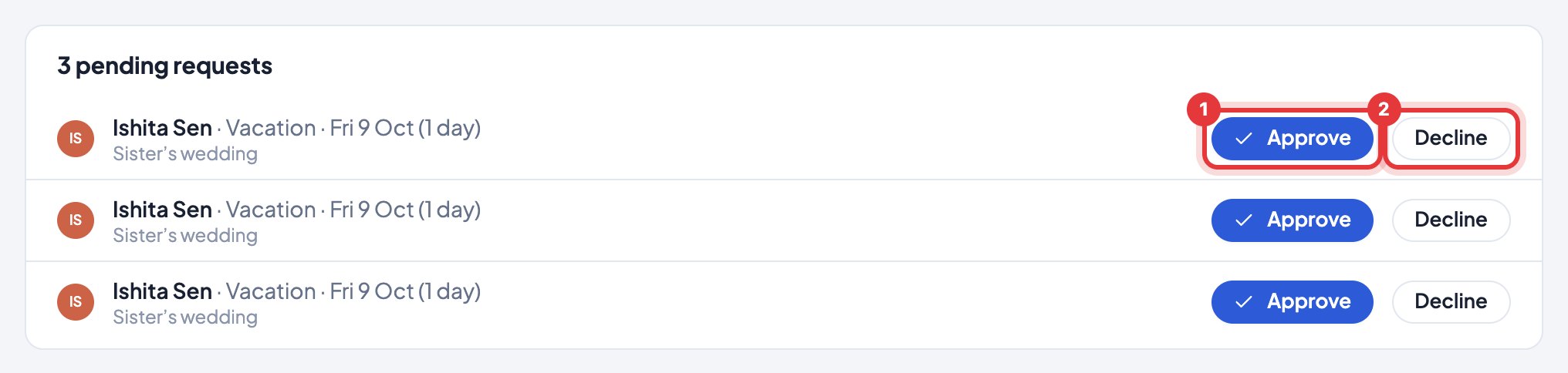
Requests wait at the top of Activity. Click Approve or Decline.
- 1Open Activity.
- 2Under pending requests, check each one.
- 3Click Approve or Decline.
You don’t have to check: a number on Activity in the menu shows how many wait for you, and each new request is emailed to you (and posted to your Slack, Teams, Telegram or Google Chat if connected). Managers hear about their own people’s.
To stop the emails, turn off Requests to approve in Settings → Alerts & emails.
Owners, admins and managers can also add leave for someone directly with Add absence — it’s approved at once. A manager’s own leave goes to an admin.
Still stuck? We’re happy to help.
Ask usMore on attendance and leave
- Why was I marked late?
- Why does it say absent?
- What does "Left early" mean?
- How do I ask for time off?
- Can someone take half a day, or just a few hours, off?
- How do I add public holidays and festivals?
- How do I mark leave without pay (LOP)?
- How do I add a meeting or field work?
- How do I read the Activity calendar?
- Someone worked on their day off. Does it show?
New to Timerfly?
Try every feature free for 14 days.