For employees: start, breaks and stop in the Timerfly app
1 min video
Start work, take a break (or private time), and stop work in the desktop app; what the reminders and notifications mean.
How do I start and stop my work day?
Click Start work in the Timerfly app when you begin, and Stop work when you finish. Nothing is recorded outside your work day.
- 1Click the Timerfly icon (menu bar on a Mac, next to the clock on Windows).
- 2Click Start work.
- 3At the end of the day, click Stop work and confirm.
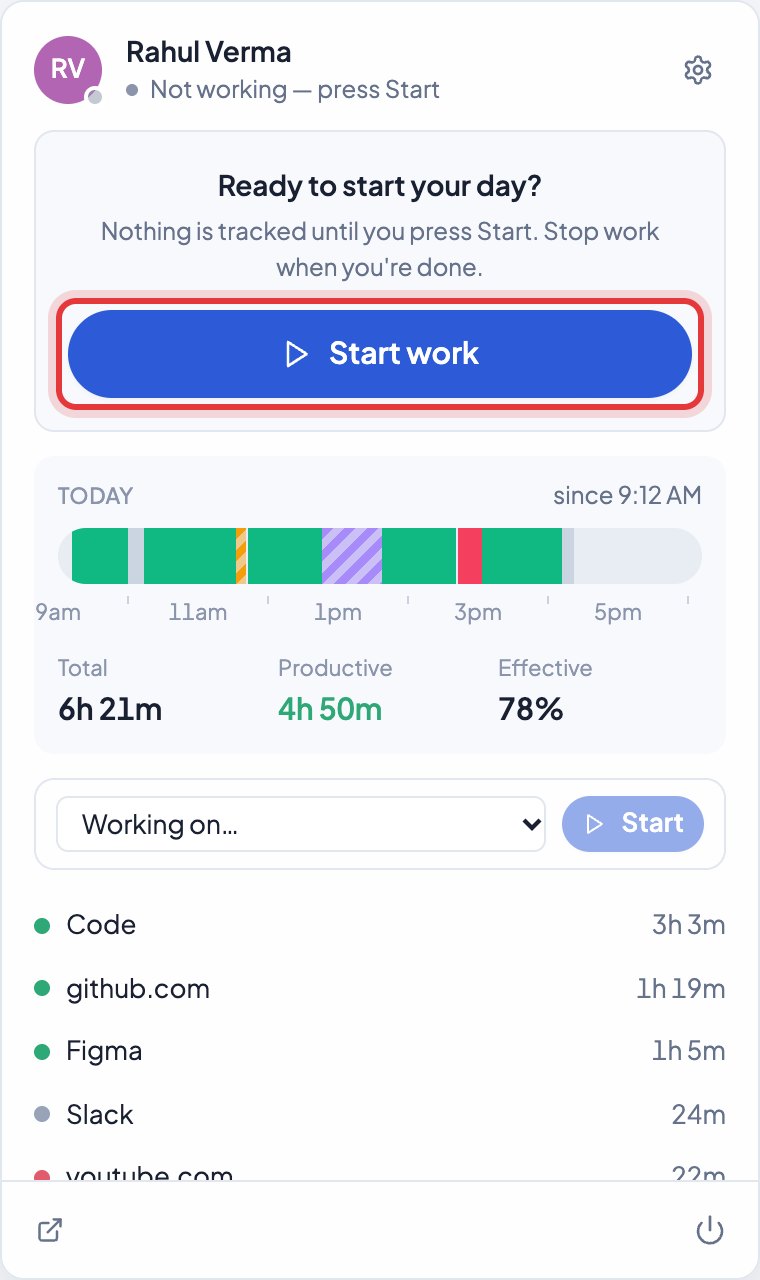
Your company may have set the day to start by itself instead: then your first keyboard or mouse use during work hours starts it, and a notification tells you so. If you forget to press Start, the app reminds you.
In Help
More videos
All videos →

New to Timerfly?
Try every feature free for 14 days.