Videos
22 short videos showing how Timerfly works, for owners, managers and employees. Each answers one question in Help.
 0:58How to install Timerfly on Windows and MacDownload the desktop app from Settings → Desktop app, get past the Windows message, confirm opening it on a Mac (click Open), sign in with your Timerfly email and password, and allow the two Mac permissions.
 1:00Who's working in your office? Timerfly in 60 secondsTimerfly in one minute for owners with more than one office: who's working, idle, on a break or late in every office on one screen, late marked against each person's own shift, calls counted as work, the month-end attendance Excel, and each employee seeing their own day.
 0:43Does my work day start by itself in Timerfly? (for employees)Your company chooses how the work day starts. If it starts by itself, just use your computer in work hours and a short note says the day has started. With Start work, click the Timerfly icon and press Start work; the app reminds you if you forget. Take a break pauses time and starts again by itself; Private time records nothing. Press Stop work when you finish; a forgotten day closes at your last activity.
 1:03Start your team's work day automatically, or with a Start buttonSettings → Organization → Work starts has two choices. By itself (recommended): the day starts at the first computer use in work hours, or a little earlier for people who come in early (Can start: 10 minutes by default). Or when each person presses Start work, with reminders. Stop work still ends the day; a forgotten day closes after 3 hours away at the last real activity, so there's no extra overtime.
 0:56Why is my time "idle"? Calls, locked screen and forgetting to stopIdle = 3 minutes with no keyboard or mouse (owners change it). Calls with the mic in use count as work for up to 2 h (Windows and Mac, any app, no audio recorded). A locked screen is idle at once. A forgotten Stop closes the day after 3 h (1–6 h or Never), and the day ends at the last activity, so there's no overtime.
 0:40Catch fake activity like mouse jigglers: the "Looks automated" alertTimerfly flags activity made by a program, like a mouse jiggler, on its own: “Looks automated” is on for every company, and Settings → Alerts & emails only sets where the alert goes. The alert links to the person’s day, where the time is marked for owners, admins and managers only. Hours aren’t changed.
 0:56Get a Telegram or Slack alert when someone is lateSettings → Alerts & emails: turn on Late start (minutes), send to email or chat apps, connect Telegram (BotFather /newbot, add the bot to the group, paste the token, pick the group) or Slack (incoming webhook; Teams and Google Chat the same), Send test alert; the alert arrives within a minute with who, start time and a link to their day; every alert is listed on the Alerts page; turn alerts off by department or person.
 1:01How to download the payroll attendance ExcelActivity → Download for payroll: choose the pay month (custom start day like the 26th, remembered), keep everyone or pick departments; paid days = days in the period minus loss of pay (absent + unpaid leave + half of each half day); Download Excel or CSV with one row per person; set date of joining in Team → People for mid-month joiners.
 1:35Send attendance to Google Sheets or Discord (Zapier, Make, n8n)Timerfly sends each event to Zapier (or Make / n8n), and Zapier writes it into a Google Sheet or posts to Discord. Catch Hook address from Zapier → Timerfly Settings → API & integrations → Add webhook (owner or admin), tick Someone started work, Send test, start work once for a real sample; Google Sheet with Date / Name / Arrived headings; Zapier Google Sheets Create Spreadsheet Row with Formatter to India time; Discord Send Channel Message. Business plan.
 1:33Leave in Timerfly: ask, approve, half days and holidaysEmployees ask on Activity → Request time off (type, How long: full day, first or second half, a few hours); leads approve or decline at the top of Activity; Add absence for someone (approved at once, Unpaid = LOP); Add holidays from the country list.
 1:12Turn screenshots on, see them, and blur themSettings → Screenshots → Turn on and choose how often; never during idle, breaks or private time; see them on a person's day (Team → name), open large, delete; blur for the company, a department or a person.
 0:57See one person's month and their overtimeReports: pick the dates (Last month), Extra hours shows time before and after the schedule and on days off; click a name for that person's report, day by day, and Export → Excel · day by day or PDF.
 1:05Choose a plan and pay, with a GST invoiceThe owner opens Plans, picks Annual or Monthly, chooses a plan, enters people and GST details (GSTIN or not registered), and pays through the payment gateway; or requests an invoice for a bank transfer. Amounts are blurred; prices at timerfly.com/pricing.
 1:00For employees: start, breaks and stop in the Timerfly appStart work, take a break (or private time), and stop work in the desktop app; what the reminders and notifications mean.
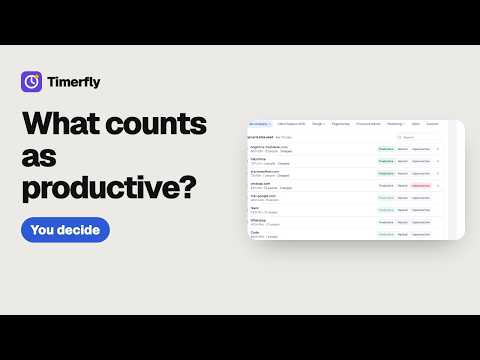 0:57Change what counts as productiveSettings → Productivity rules: mark any app or site productive, neutral or unproductive; add a pattern rule; department rules win for their people.
 0:54Night shifts counted as one working dayA night shift counts on the day it starts (10 PM Mon – 6 AM Tue = Monday's work) when it's on the Work schedule; staying late counts up to 4 h past the end; without it, work after midnight counts on the calendar date.
 1:00How to set grace minutes for late marksSet Grace (minutes) so people are marked late only after the grace period; grace counts from each person's own start time (shift, own hours, or company hours).
 0:51Set up Timerfly in 5 minutes: your first day as ownerThe four first-day steps from the Team page checklist: install the app, invite your team, get 3 people tracking, turn on late alerts; then check working hours.
 0:49How to add your team (and what they receive)Invite each person by email from the Team page; they get an Accept invitation email, choose a password, then install the desktop app. Until then they show as No app yet.
 0:59How to set your working hours (and different hours for one person)Set company hours in Settings → Organization → Work schedule; give one person their own hours or No fixed hours from Team → People.
 0:58How to read the Team page: who's working, late, idleThe Team page live: top numbers, filters with counts (Working, Idle, Break, Late, Left, Absent), what each row means, late marks, shifts not started, and one person's day.
 0:59Plan shifts for the week (or bring the rota from Excel)Save shifts once on Work schedule, then plan the week in the grid (Edit schedule → pick days → shift → Save); Excel download/upload, Copy last week, Clear week.