How to download the payroll attendance Excel
1 min 1 s video
Activity → Download for payroll: choose the pay month (custom start day like the 26th, remembered), keep everyone or pick departments; paid days = days in the period minus loss of pay (absent + unpaid leave + half of each half day); Download Excel or CSV with one row per person; set date of joining in Team → People for mid-month joiners.
Can we run payroll from Timerfly?
Yes. On Activity, click Download for payroll, pick the month, and download the Excel: one row per person with paid days and loss of pay.
- 1Open Activity and click Download for payroll.
- 2Choose the Pay month (and, once, the day your pay month starts).
- 3Click Download Excel (or CSV).
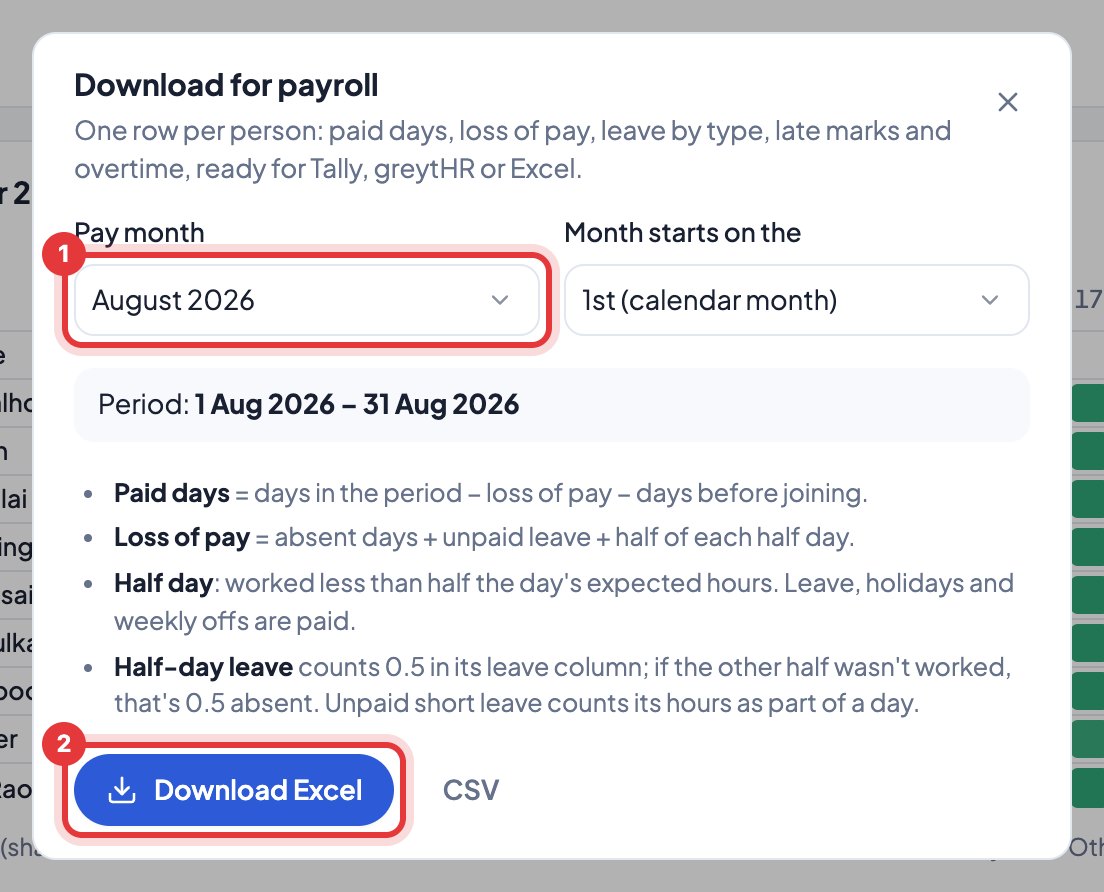
Columns: working, present, half and absent days; paid, sick, unpaid and remote leave; holidays; weekly offs; late marks; left early; hours, offline hours, expected hours and overtime; days before joining and after leaving; loss of pay; paid days. It opens in Excel and goes into Tally, greytHR or your sheet.
Someone who joined during the month: set their date of joining in Team → People (the Joined column). Days before it aren’t paid. People who were with you before you started Timerfly need nothing: those first days count as paid (“Before Timerfly”), never absent.
Paid days = days in the period − loss of pay − days before joining − days after leaving. Loss of pay = absent days + unpaid leave + half of each half day.


