Can we run payroll from Timerfly?
For owners and admins
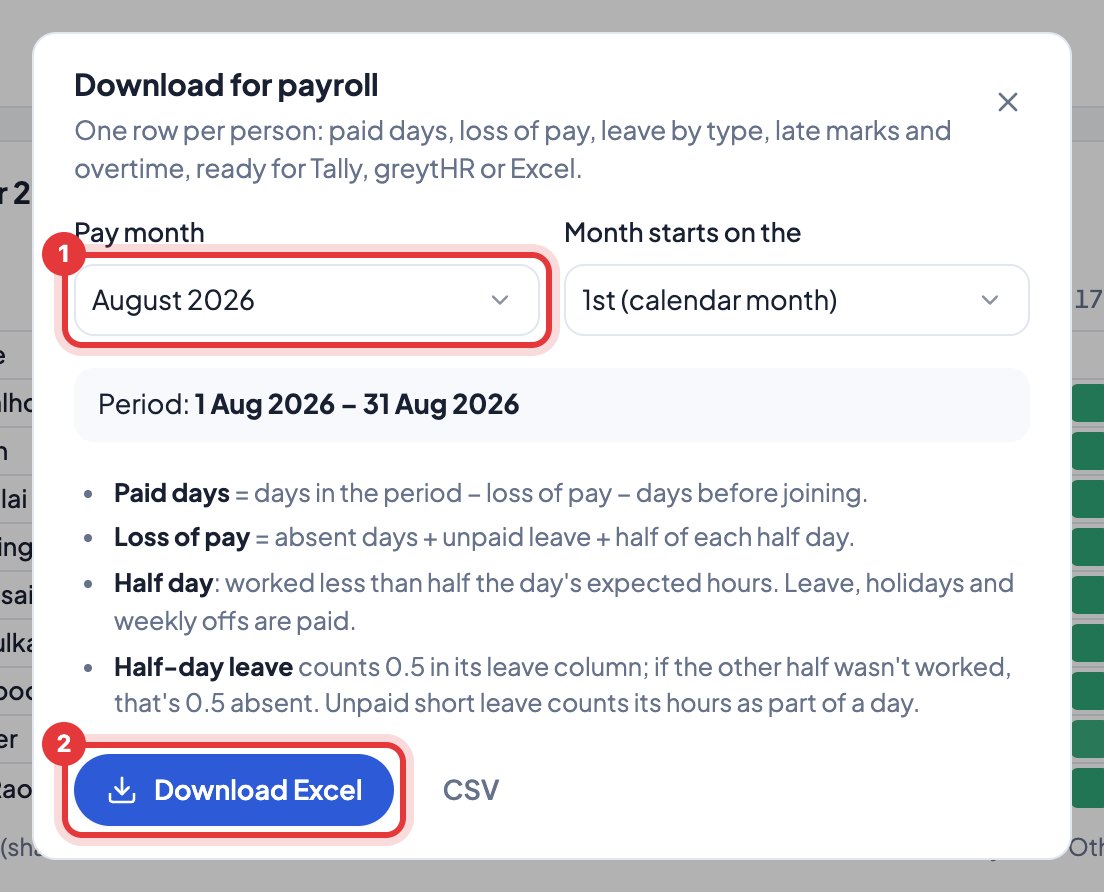
Yes. On Activity, click Download for payroll, pick the month, and download the Excel: one row per person with paid days and loss of pay.
- 1Open Activity and click Download for payroll.
- 2Choose the Pay month (and, once, the day your pay month starts).
- 3Click Download Excel (or CSV).
Columns: working, present, half and absent days; paid, sick and unpaid leave; holidays; weekly offs; late marks; left early; hours; overtime; loss of pay; paid days. It opens in Excel and goes into Tally, greytHR or your sheet.
Someone who joined during the month: set their date of joining in Team → People (the Joined column). Days before it aren’t paid. People who were with you before you started Timerfly need nothing: those first days count as paid (“Before Timerfly”), never absent.
Paid days = days in the period − loss of pay − days before joining. Loss of pay = absent days + unpaid leave + half of each half day.
More on reports and payroll
- How do I read the Team page?
- How do I read My Day?
- What’s in Reports?
- How do I see one person over a month?
- How do I see overtime?
- How do I export a report to Excel or PDF?
- Our pay month runs from the 26th to the 25th. Does that work?
- Can I get reports by email?
- How do projects work?
- Can I give people tasks?
- Can I show a client the hours spent on their project?
- Can I see what a project costs?