How to install Timerfly on Windows and Mac
58 s video
Download the desktop app from Settings → Desktop app, get past the Windows message, confirm opening it on a Mac (click Open), sign in with your Timerfly email and password, and allow the two Mac permissions.
How do I install the desktop app?
Download it from Timerfly, open the file, and sign in with your Timerfly email and password.
- 1In Timerfly, open Settings → Desktop app (employees: the link in your invite email, or Account & security in your name menu).
- 2Click Download for Windows or Download for macOS (pick Apple silicon or Intel for a Mac).
- 3Open the downloaded file. On Windows, if you see “Windows protected your PC”, click More info → Run anyway.
- 4The app opens. Sign in with the same email and password you use on the website.
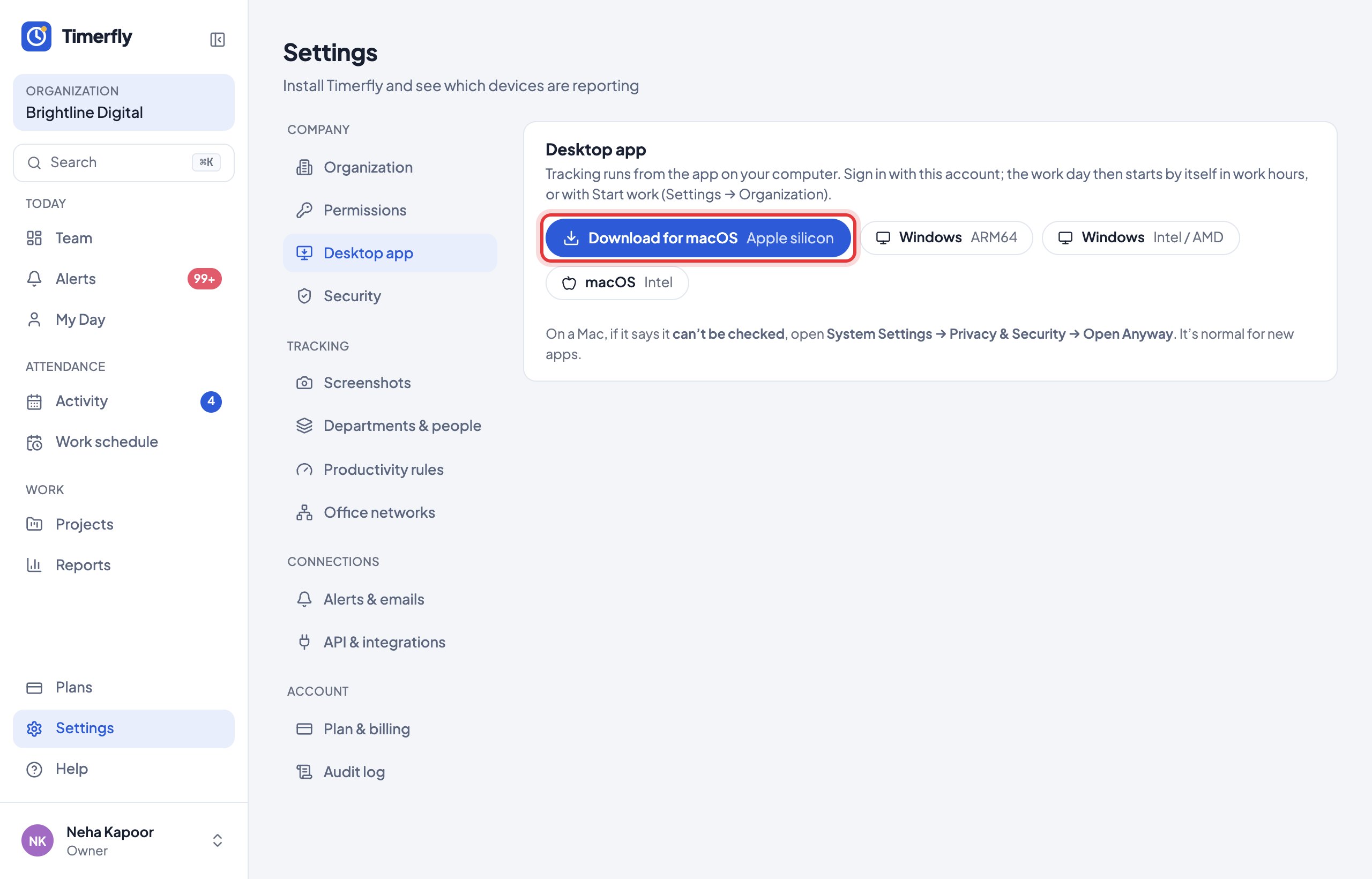
It works on Windows (most PCs, and Windows on ARM laptops) and on every Mac: there is one download for Macs with Apple silicon (M1 or newer) and one for Intel Macs. Not sure which Mac you have? Apple menu → About This Mac: “Chip: Apple M…” is Apple silicon, “Processor: Intel” is Intel. There is no Linux version.
The app starts by itself when the computer starts, and keeps itself up to date.
In Help
More videos
All videos →


New to Timerfly?
Try every feature free for 14 days.