For CA firms
Every hour of tax and audit season, by person and by client
Client hours from a one-click timer, the apps and portals each person worked in, and attendance with late marks and leave. From each person’s own laptop, Windows or Mac, in the office or at the client’s.
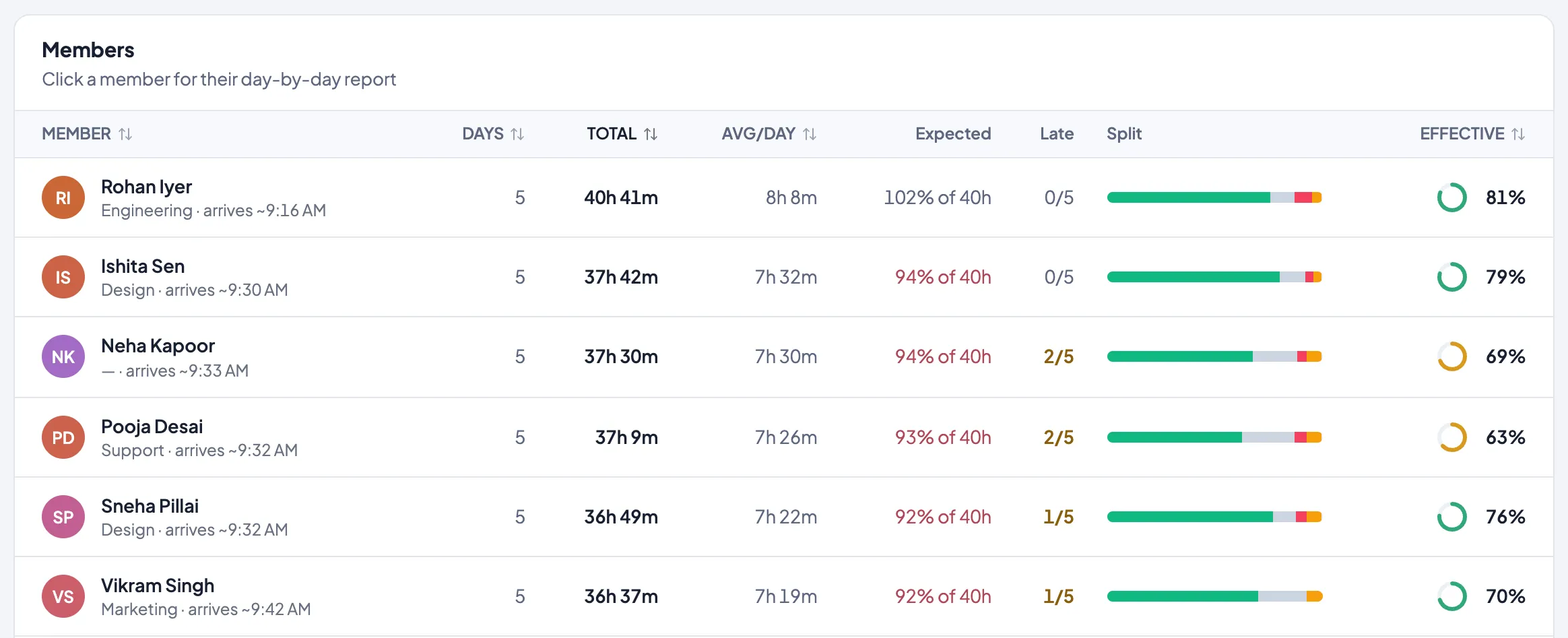
Hours per client, for billing
Client timers, tasks, costs and client links are on Pro and Business.
A timer per client
Make each client a project. Staff pick it under “Working on…” in the app and click Start; starting another stops the first. On Pro and up.
Tasks for each assignment
Add tasks like “GSTR-3B, October” or “Tax audit” to a client, choose who it’s for and when it’s due. They show in that person’s app.
Forgot to start the timer?
Add the time with Add manually on the project, so the client’s hours are complete.
What each client costs you
Set each person’s hourly rate, and Reports shows every client’s hours and cost, per person.
Hours the client can check
Share a client’s hours for a period as a link they open without signing in. Rates and costs are never shown, and you can turn the link off any time.
The apps and portals behind the hours
Tally, Excel, the GST portal and the income-tax portal show up on each person’s day as apps and websites, with time on each. You decide which count as productive.
Through deadline season, in the office and at the client’s
The day starts by itself
The first keyboard or mouse use in work hours starts the day, so nobody forgets to clock in during a rush. Late marks follow each person’s hours, with grace minutes you choose.
Long days, counted
Overtime shows per person in Reports. On Pro, an alert by email, Slack or Telegram when someone works past a limit you set.
Leave and the month for payroll
On Pro, leave requests approved on the calendar, and a monthly attendance Excel with paid days, loss of pay, late marks and overtime per person.
At a client’s office
Working on the laptop there is tracked as usual. No internet on site? The app saves everything and sends it when the connection is back.
Away from the laptop
Stock counts, meetings or a visit to the department: add it as offline time on the day. A manager approves it, and it counts. On Pro.
Office or client site
On Business, add the office’s internet address and every day shows office or remote. No location tracking.
Help a junior who’s stuck
On Business, Watch live shows their screen instantly, so you can sort out a portal error together. Nothing is recorded, and never on a break or a locked screen.
Each senior sees their own team
Make a senior the manager of their team: they see, approve and get alerts for those people only. Everyone else sees only their own day.
Client files stay private
Screenshots are off unless you turn them on. Turn them on with blur, and they show a screen’s shape but not the client’s figures.
Questions
Can we see time per client?
Yes, on Pro and up. Make each client a project, add tasks for each assignment, and staff start a timer on it from the app. Reports show hours per client and per person, and with hourly rates, what each client costs. Missed time can be added manually.
Will it capture client data in screenshots?
Only if you turn screenshots on; they’re off until you do. Then you can blur them for everyone (any plan), or for one team or person (Business), so figures can’t be read. Each person sees their own, and they’re deleted after 45 days on Starter, 90 on Pro and 180 on Business. Window titles, like a file name, are recorded, and keystrokes never are.
Does it work during audit fieldwork at client offices?
Yes for work on the laptop: it’s tracked as usual, and if the client’s internet is poor, the app saves everything and uploads it later. There’s no GPS or location tracking, so time away from the laptop (a stock count, a meeting) shows as away; on Pro, add it as offline time and a manager approves it.
Can articles see their own hours?
Yes. Articles, juniors and seniors see their own day, hours, apps and screenshots, and their team’s schedule. Never anyone else’s hours, apps or screenshots.
What does it cost for 15 staff?
Starter is ₹159 per person a month billed yearly, so ₹2,385 a month for 15. Pro, with client timers, leave and the payroll Excel, is ₹279, or ₹4,185 a month (₹349 per person paying monthly). GST is extra. Try every feature free for 14 days, no card needed.
What about India’s data protection law?
Timerfly processes the data on your firm’s behalf under India’s Digital Personal Data Protection Act, 2023, on a server in Mumbai. The app is visible on every laptop, staff see their own day, and nothing is recorded outside the work day, on breaks or in private time. How you use it is your firm’s call: tell staff what’s recorded and why. This isn’t legal advice.
Try it before the next deadline
14 days of every feature, no card needed. Install it on a few laptops and see where the hours go by tomorrow.
Prefer help? We’ll set it up with you in 15 minutes